I recently got interested in trying out Pi-Hole for blocking unwanted ads throughout my whole home network. You can learn more about the Pi-Hole project here: Pi-hole – Network-wide Ad Blocking. In short, it is a lightweight web interface over a DNS server implementation which allows you to choose from publicly maintained lists of known ad services’ IPs and block them by preventing your devices from resolving the ad servers’ DNS records.
My Hardware Setup
I chose to test running two instances of pi-hole, one as a primary and one as a backup (like how you would typically configure DNS on a computer).
- Primary:
- Docker container running the already available pi-hole docker image: pi-hole/docker-pi-hole: The official Pi-hole Docker image from pi-hole.net
- Docker host – Ubuntu 24.04.3 VM
- Hosts multiple containers so it is oversized for this application
- 100GB storage, 4 core, 8gb RAM
- virtualized in Proxmox on a bare metal machine
- Secondary:
- Raspberry Pi Zero W (1.1)
- Default Raspberry Pi OS (lightweight option)
- Installed using these instructions: pi-hole/docker-pi-hole: The official Pi-hole Docker image from pi-hole.net
Primary Install
In general I just followed the exact directions from the pi-hole docker github: pi-hole/docker-pi-hole: The official Pi-hole Docker image from pi-hole.net using Docker Compose for easier management of the container. On that page is the example compose.yaml file that you can work from.
I deployed the compose.yaml file to my environment in a project folder and ran the start command:
docker compose up -dRan into port usage issues – upon starting got this message:
“Error response from daemon: failed to set up container networking: driver failed programming external connectivity on endpoint pihole (5cfe83f2bf298a26aa4ab56f000df0fb7e37f209767de2828d0c5f22ec56214b): failed to bind host port 0.0.0.0:53/tcp: address already in use”
Running this command I checked what was listening on each port:
sudo lsof -i -P -n | grep LISTEN
Found that systemd was listening on the port.
I wasn’t sure if it was normal for systemd to use this port, or if it was needed for some reason, so I searched around. Thanks to this poster, I had something to follow: How To – Fix Pihole Docker Error: Failed to bind host port for 0.0.0.0:53:172.18.0.8:53/tcp: address already in use
I followed those instructions exactly. Editing resolved.conf in nano I un-commented the DNSStubListener line and set it to “no”
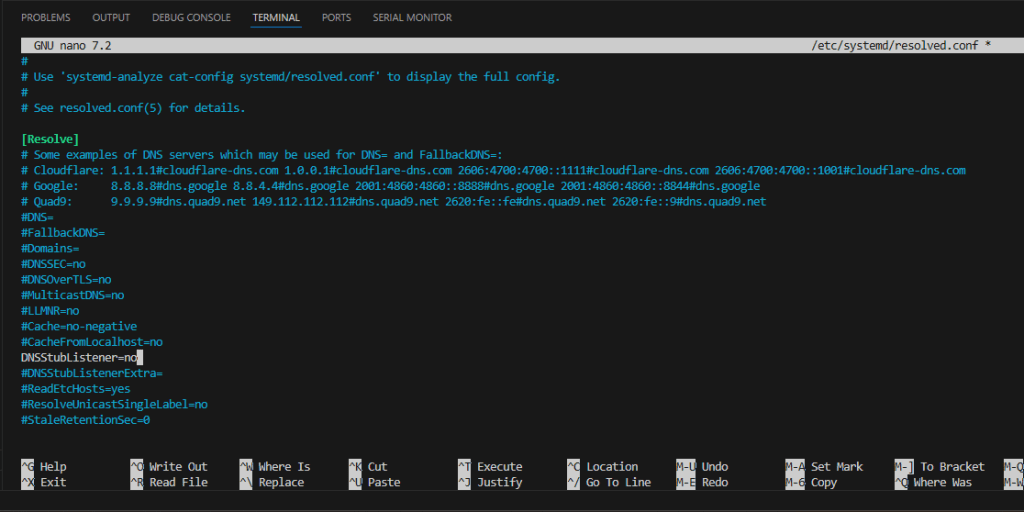
Then restarted systemd
sudo service systemd-resolved restartNow I can see that the port is no longer being used by running lsof again. Pinging google.com was successful telling me that I did not break the dns config.
After re-running the docker up command, the container started successfully and going to my ubuntu docker host’s ip on port :7088 (used in my compose file) brought me to the admin login:

You can log in with the password you set in the docker compose file.
I noted the ips of both my primary and secondary instances. Then I could test this with configuring DNS on my main windows workstation.
Since I am using an AT&T router, it turns out that you cannot configure the DNS at the router level. But you can still configure it on each device directly. If this works reliably enough, it is a reason to set my AT&T router into passthrough mode and then put in my own router instead so that this DNS can be passed to all devices on my network by default.
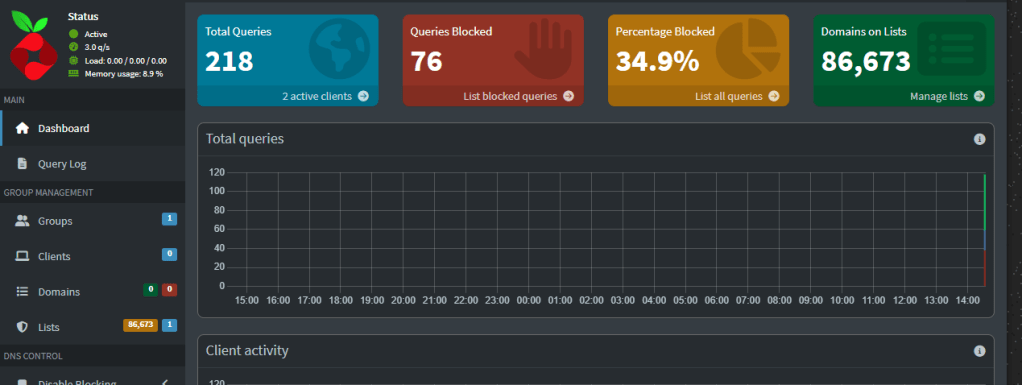
In windows 11, go to Network & internet -> Ethernet. You can click the DNS setting from auto/dhcp to manual and put in the IP for the primary and secondary pihole instances. Now after visiting a few sites, I can see queries coming into the pihole dashboard and we are up and running!
 Dylan Projects